Give Freelancer Access to Social Media (Without Sharing Passwords)
You found a freelancer. Their portfolio is solid, their rate is fair, and they're ready to start posting on Monday. Then they ask for your Instagram password, and you freeze. That hesitation is the right instinct. Here's how to give freelancer access to social media without handing over your accounts, your reputation, or the keys to your business, using Minopa's team workspaces (on the Creator plan or higher) instead of a shared password doc.
Why sharing your password is the wrong starting point
Sharing a password feels fast. It's also the single most common way small businesses lose control of their social accounts.
When you DM your Instagram login to a freelancer, four things happen, and none of them are good. The credential lives in their messages forever, even after the contract ends. Two-factor authentication breaks (because the code goes to your phone, not theirs, every time they log in). The platform may flag the login as suspicious and lock the account. And if the relationship sours, you have no audit trail of who posted what. Only that "your" account did it.
The right starting point is a tool that lets a freelancer post on your behalf without ever knowing your password. That's what Minopa's team workspaces are built for.
A note on the cost. Minopa's Free plan is single-user, so inviting a freelancer requires moving up to a paid plan. The Creator plan starts at $19 a month and includes up to three team members per workspace. That's the entry point for the workflow described in this post. Nineteen dollars a month is also less than the cost of one hour of recovery work after a leaked Instagram password, which is the real comparison to make here.
The safe way to give freelancer access to social media
Here's the model that actually works for solo founders hiring their first social media freelancer.
You connect your social accounts (Instagram, Facebook, X, LinkedIn, TikTok, Threads, Pinterest) to a Minopa workspace, using the official OAuth flow each platform provides. Your password never leaves the platform's own login screen.
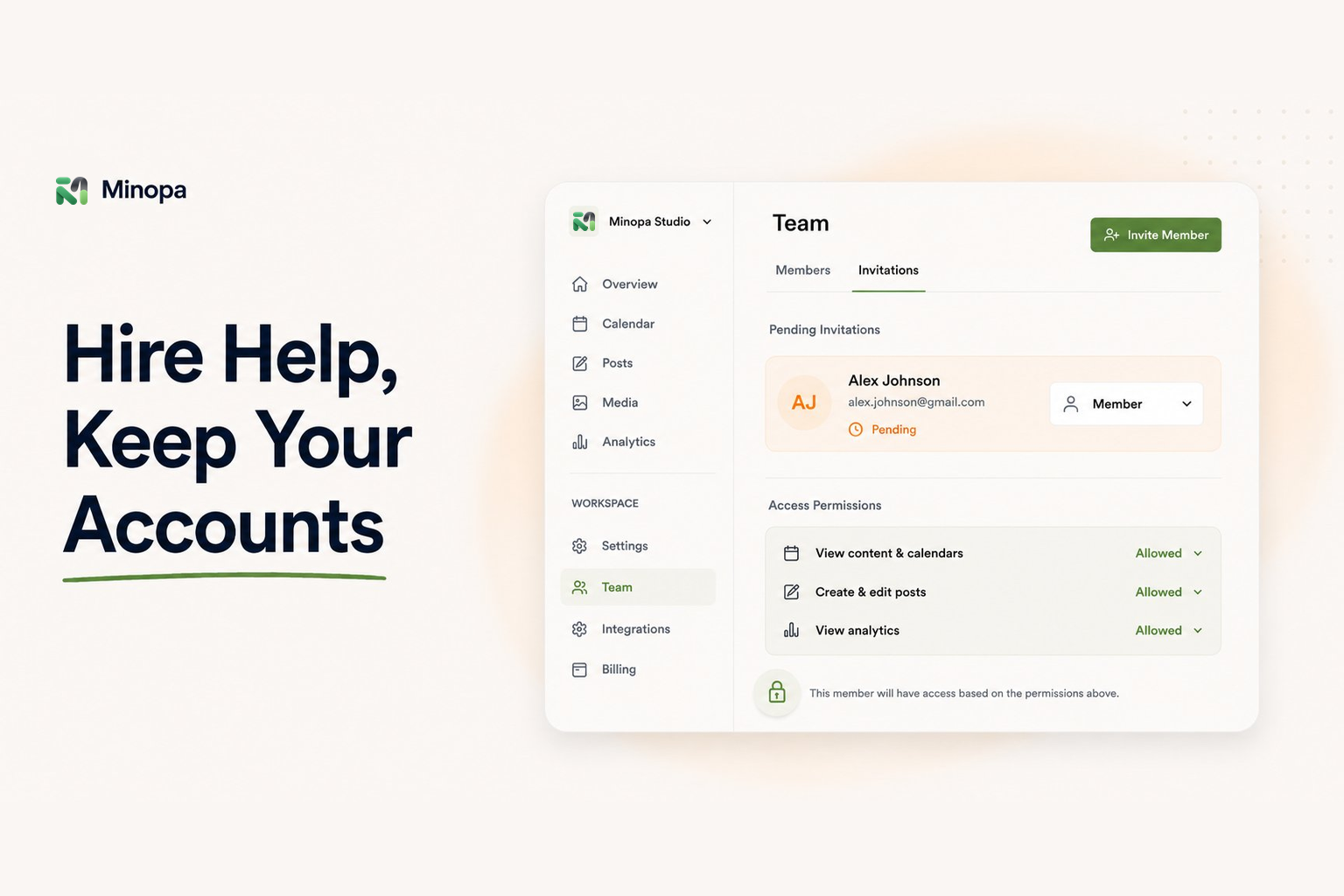
You invite the freelancer by email to that workspace, with a specific role.
They accept the invite, set their own login, and start drafting and scheduling posts inside Minopa.
The platforms see Minopa publishing on your behalf via their official APIs. The freelancer never touches your Instagram or Facebook password.
When the engagement ends, you remove them from the workspace in one click. Their access is gone instantly. Your accounts stay intact. No password rotation, no awkward "please change everything" conversations.
Choosing the right role for a freelancer
Minopa workspaces ship with three roles: admin, member, and viewer. For most solo founders hiring one freelancer, member is the right default. Here's the breakdown.
Admin. Full control. Can connect new social accounts, invite other people, change billing. Give this to yourself and nobody else, unless you're hiring a fractional CMO you'd trust with your Stripe login.
Member. Can create, edit, and schedule posts. Can upload to the media library. Cannot remove other members or disconnect social accounts. This is the freelancer slot.
Viewer. Read-only. Can see the calendar and drafts but can't publish. Useful for a client or stakeholder you want to keep in the loop without giving them the publish button.
If "member" feels too broad (say, you want a freelancer who can draft but not auto-publish), Minopa's granular permissions let you narrow that further. You can split out who can create posts, who can manage media, and who can invite new members. The defaults are sensible, and you can tune them per workspace.
Walk-through: inviting your first freelancer
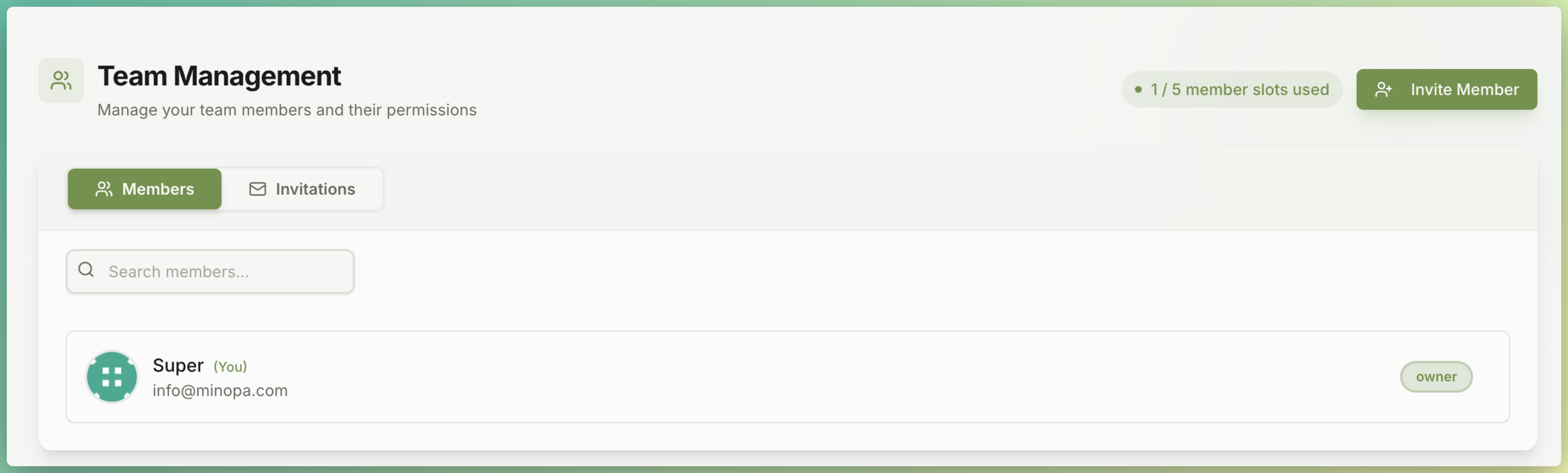
Once your social accounts are connected, the invite flow takes about two minutes.
Open your workspace and go to Members.
Click Invite member and enter the freelancer's email.
Pick the role (member is the default for freelancers). If you want to tighten permissions further, do it now. The role is assigned before they accept, so they only ever see what you approved.
Send the invite. They get an email, set their password, and land in your workspace with exactly the permissions you chose.
That's it. They can now schedule a week of Instagram posts without ever seeing your Instagram credentials.
What "safe" actually looks like, day to day
Day-to-day safety is mostly about visibility. Once your freelancer is in the workspace, you should be able to answer three questions at a glance.
What's scheduled to go out this week? Open the content calendar. You'll see every draft and scheduled post on a month or week view, color-coded by platform. If your freelancer queued something for Saturday at 9am that you don't recognize, you'll spot it.
What got published, and when? The same calendar shows published posts. You can also drill into any post to see who created it and when it went live.
What's in our media library? Your media library is shared across the workspace. Any image or video the freelancer uploads, imports from Canva or Google Drive, or edits in-app, is there for you to review. If something off-brand shows up, you see it before it ships.
This is the part that password-sharing destroys: with a shared login, you have zero idea what the freelancer is doing until it's posted (and sometimes not even then). With workspace access, the calendar is the audit trail.
Five small habits that keep things tight
Tooling is half the answer. The other half is a few simple habits.
Connect platforms yourself. Never let a freelancer connect a social account on your behalf, even if it's faster. The connection should always start from your admin account.
Use a dedicated browser profile or a password manager for your social platforms. Don't reuse the same password across Instagram, Facebook, and your email. If one leaks, the others stay safe.
Keep two-factor authentication on everywhere. It's annoying for ten seconds. It's the difference between "they got my password" and "they have my account."
Schedule a monthly cleanup. Open your workspace members list, and remove anyone you're no longer working with. Don't let dormant access pile up.
Set a recovery email and phone you control. If a freelancer ever does compromise an account, recovery flows go to whatever Meta or X has on file. Make sure that's you.
When to graduate to something heavier
This guide is written for solo founders and small business owners hiring one freelancer. If you're managing five or more clients across multiple brands, you've outgrown a single workspace and a single freelancer relationship. Read how to manage multiple client social media accounts for the agency-shaped version of this same problem: separate workspaces per client, brand isolation, and switching contexts without leaking content between accounts.
For everyone else (the founder hiring their first social media helper, the small business bringing on a freelancer for a three-month sprint) workspaces with the right role are the whole answer.
Get started without sharing a password
Inviting a freelancer to a Minopa workspace requires the Creator plan or higher. Creator is $19 a month and gets you four social accounts, three workspace seats (you plus two collaborators), and 60 published posts per month. That's the smallest tier that lets you actually run the password-free workflow above. If you need more accounts, more seats, or more volume, compare plans on the pricing page.
Hiring help shouldn't mean handing over your accounts. A few dollars a month for proper workspace invites beats handing over your Instagram login, every time.